Login to the admin console or use OC
Before you can access the admin console or the oc client, you'll have to setup VPN or an ssh tunnel through the steppingstone server.
Prerequisites
- You need to have a SolisID at the University Utrecht with 2fa enabled.
Only for options 2 and 3
- You need to have access to the Utrecht University Steppingstone server.
If you do not have these prerequisites, please contact one of the service delivery managers of the Utrecht University.
Option 1: Solis-VPN (recommended)
Follow the steps: manual Solis-VPN
Option 2: sshuttle (advanced)
Pre-requisites
- sshuttle on your local machine sshuttle-docs
If for some reason you don't have a Mac or Linux machine, you can use the Windows Subsystem for Linux (WSL) to install sshuttle wsl-docs
Steps
- Run the command below in your terminal
sshuttle -r solisid@steppingstone.its.uu.nl -x steppingstone.its.uu.nl 0.0.0.0/0 - Fill in your 2fa code when prompted
Now the gui and cli of OpenShift are accessible, so you can start your epic work on OpenShift :-)
sshuttle
sshuttle is a powerful tool that allows you to create a VPN-like connection over SSH, combining the simplicity of SSH with the capabilities of a VPN. It allows you to route traffic from your local machine through a remote server, effectively providing a secure and encrypted connection without needing root access on the client side. sshuttle-docs
Option 3: socks5-proxy (advanced)
Steps for the GUI
Add lines below to your ~/.ssh/config file.
Host steppingstone
    HostName steppingstone.its.uu.nl
    IdentityFile ~/.ssh/<your-private-key>
    User <your-username>
    ForwardAgent yes
    Port 22
Set environment variables for the proxy in your terminal
Set up the proxy
Set your browser to use the proxy
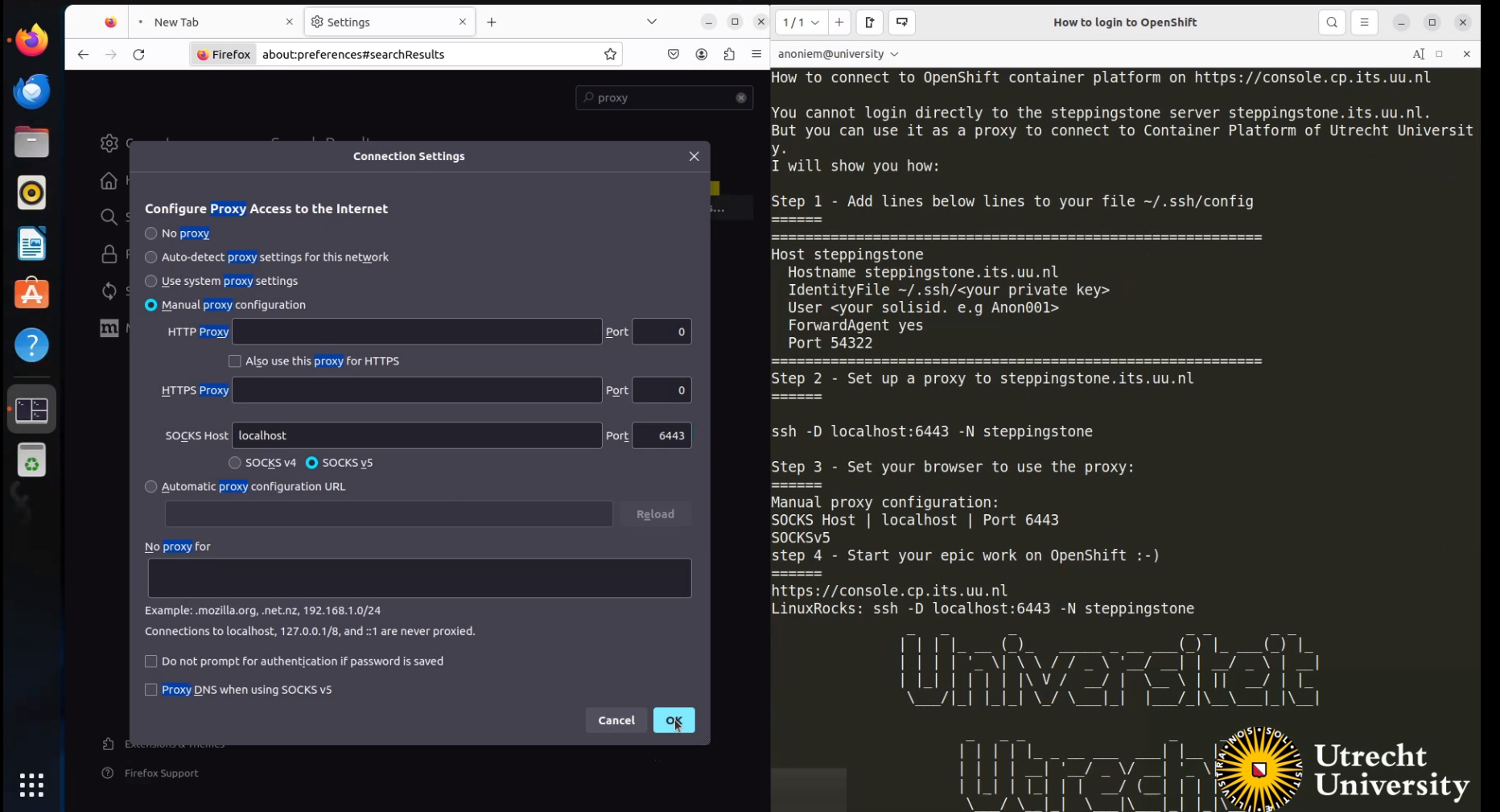 Open the OpenShift console in your browser: console
Start your epic work on OpenShift ;-)
Walkthrough movie
Steps for the CLI
Run the following command from your CLI.
A browser will open where you can log in.Or:
Get your login command from the OpenShift console and execute it in your terminal.
Click on your username in the right top corner and select Copy Login Command.
Troubleshooting
If you have trouble connecting to the OpenShift api, you can try the following:
- Check if the proxy is set correctly.
- Check if the proxy is running.
- Check if the OpenShift console is reachable.
- Check if there are no conflicting settings in your ~/.ssh/config file.
If you have trouble reaching the api through the cli, you can also set up your connection like so:
Proxy setup for the CLI
Make sure to set the correct port:
ssh -i ~/.ssh/<your-private-key> 6443:console.cp.its.uu.nl:6443 -D 3333 <your-username>@steppingstone.its.uu.nl
Use the oc login like so: